Deploying Next.js to AWS with CI/CD
A practical flow using GitHub Actions, S3/CloudFront (or ECS), and safe rollouts for production-ready deployments.
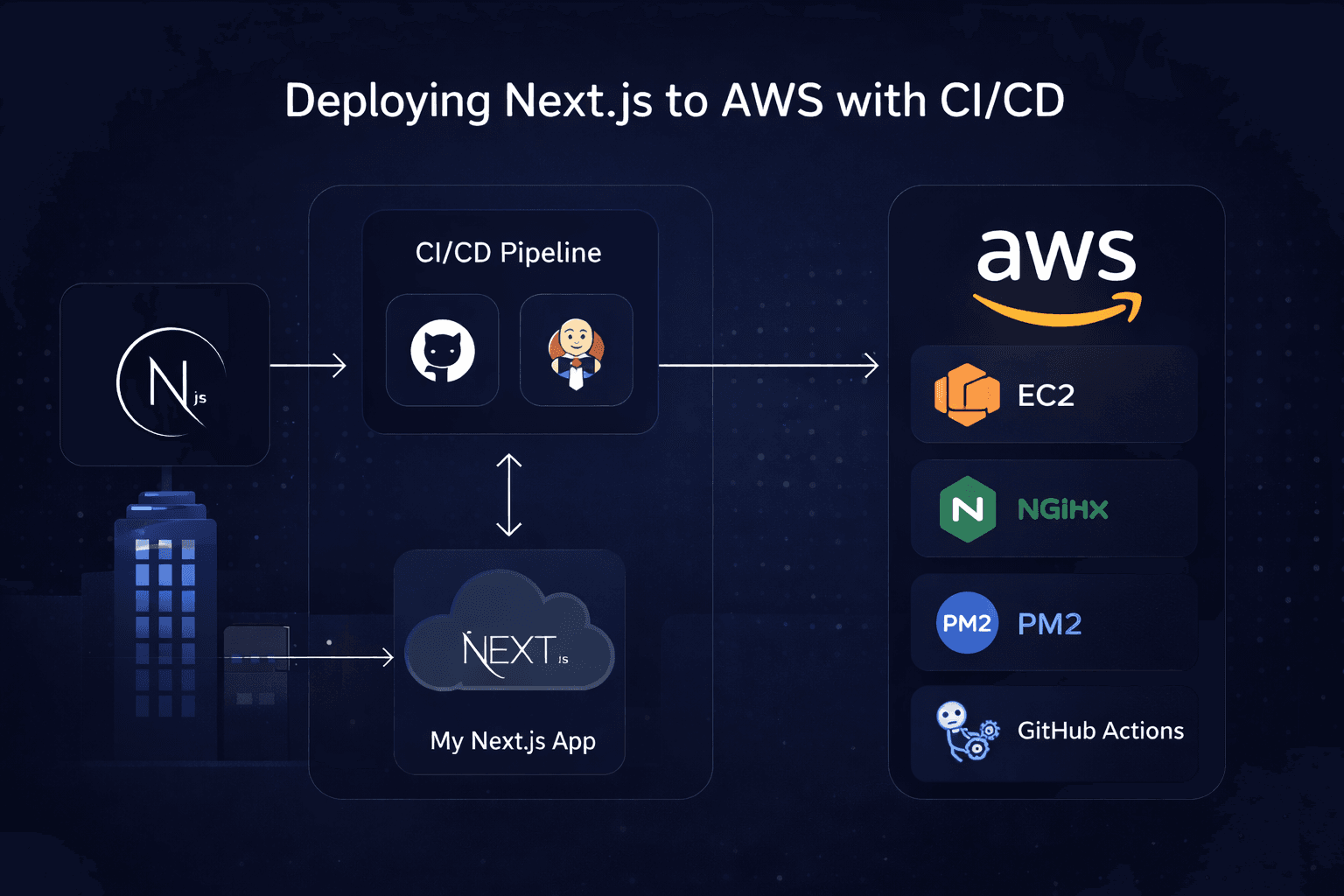
Deploying a Next.js app to AWS gives you full control, predictable costs, and real production experience. In this guide, we’ll deploy a Next.js app on an EC2 instance, run it with PM2, serve it through Nginx, and automate deployments using GitHub Actions.
Architecture overview
GitHub → GitHub Actions → EC2
                         ├── PM2 (runs Next.js)
                         └── Nginx (reverse proxy)
0. Prerequisites
- A Next.js app pushed to GitHub
- An AWS account
- Basic Linux & terminal knowledge
- A domain name (optional but recommended)
1. Create an EC2 instance
Launch an EC2 instance with Ubuntu 22.04 LTS (t2.micro).
Security group: allow SSH (22), HTTP (80), HTTPS (443).
chmod 400 your-key.pem
ssh -i your-key.pem ubuntu@YOUR_EC2_PUBLIC_IP
2. Install system dependencies
sudo apt update && sudo apt upgrade -y

# Node.js (LTS)
curl -fsSL https://deb.nodesource.com/setup_18.x | sudo -E bash -
sudo apt install -y nodejs

node -v
npm -v

# PM2
sudo npm install -g pm2

# Nginx
sudo apt install -y nginx
sudo systemctl start nginx
sudo systemctl enable nginx
Visit http://YOUR_EC2_IP — you should see the Nginx default page.
3. Set up your Next.js app
cd /var/www
sudo git clone https://github.com/your-username/your-repo.git
sudo chown -R ubuntu:ubuntu your-repo
cd your-repo

npm install
npm run build

pm2 start npm --name "nextjs-app" -- start
pm2 save
pm2 startup
Your app should now be running on port 3000.
4. Configure Nginx
sudo nano /etc/nginx/sites-available/nextjs
server {
    listen 80;
    server_name yourdomain.com www.yourdomain.com;

    location / {
        proxy_pass http://localhost:3000;
        proxy_http_version 1.1;
        proxy_set_header Upgrade $http_upgrade;
        proxy_set_header Connection 'upgrade';
        proxy_set_header Host $host;
        proxy_cache_bypass $http_upgrade;
    }
}
sudo ln -s /etc/nginx/sites-available/nextjs /etc/nginx/sites-enabled/ sudo nginx -t sudo systemctl reload nginx
Your app is now accessible via port 80 🎉
5. Add SSL with Certbot (optional)
sudo apt install certbot python3-certbot-nginx -y
sudo certbot --nginx -d yourdomain.com -d www.yourdomain.com

sudo certbot renew --dry-run
6. GitHub Actions CI/CD
Create an SSH key, add it to the EC2 authorized_keys, and store the private key in GitHub Secrets (EC2_HOST, EC2_USER, EC2_KEY).
name: Deploy Next.js App

on:
  push:
    branches:
      - main

jobs:
  deploy:
    runs-on: ubuntu-latest

    steps:
      - name: Checkout code
        uses: actions/checkout@v3

      - name: Deploy to EC2
        uses: appleboy/ssh-action@v0.1.10
        with:
          host: ${{ secrets.EC2_HOST }}
          username: ${{ secrets.EC2_USER }}
          key: ${{ secrets.EC2_KEY }}
          script: |
            cd /var/www/your-repo
            git pull origin main
            npm install
            npm run build
            pm2 restart nextjs-app
7. Final result
Every push to main triggers a deploy: SSH → pull → build → PM2 restart. 🚀
8. Common issues & fixes
App crashes after reboot
pm2 startup
pm2 save
502 Bad Gateway
Check PM2 and port 3000, then:
pm2 logs
Permission issues
sudo chown -R ubuntu:ubuntu /var/www
9. Why this setup?
- EC2: Full control & low cost
- PM2: Process management + restarts
- Nginx: Production-grade reverse proxy
- GitHub Actions: Free, simple CI/CD
Final thoughts
This setup is scalable, cheap, production‑ready, and portfolio‑worthy. If you understand and can explain this workflow, you’re ahead of most frontend developers.